


Orion Overwatch 2 Cheat with Aimbot and ESP
Orion Overwatch 2 Cheat is a streamlined private software solution for the Steam version of Overwatch 2, featuring configurable aiming assistance, enemy ESP, an adjustable aiming field of view and flexible sensitivity controls.
Designed for players who want a simple and focused feature set, Orion combines its essential Aimbot and visual functions inside an easy-to-use interface. Instead of overwhelming users with dozens of unnecessary options, the software concentrates on the tools that matter most during fast Overwatch 2 matches: target tracking, aiming control and enemy awareness.
Orion supports compatible Intel and AMD processors, works with supported 64-bit editions of Windows 10 and Windows 11, and can be used with the game running in Windowed or Fullscreen Windowed mode.
Why Choose Orion for Overwatch 2?
Overwatch 2 features fast heroes, vertical movement, sudden direction changes and team fights where several enemies may appear on the screen simultaneously.
A useful Overwatch 2 tool needs to respond quickly without making the configuration unnecessarily complicated. Orion is built around this principle.
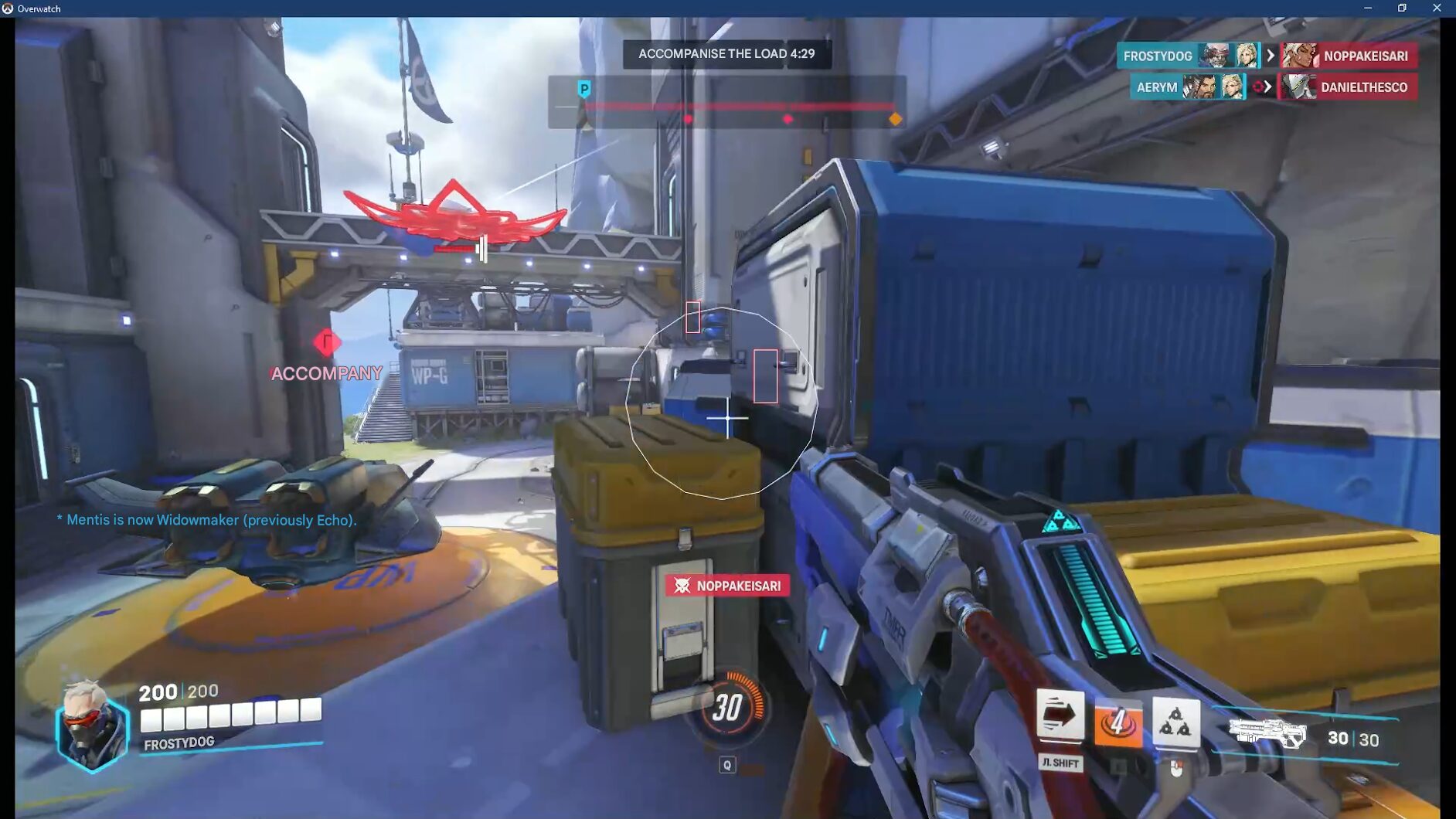
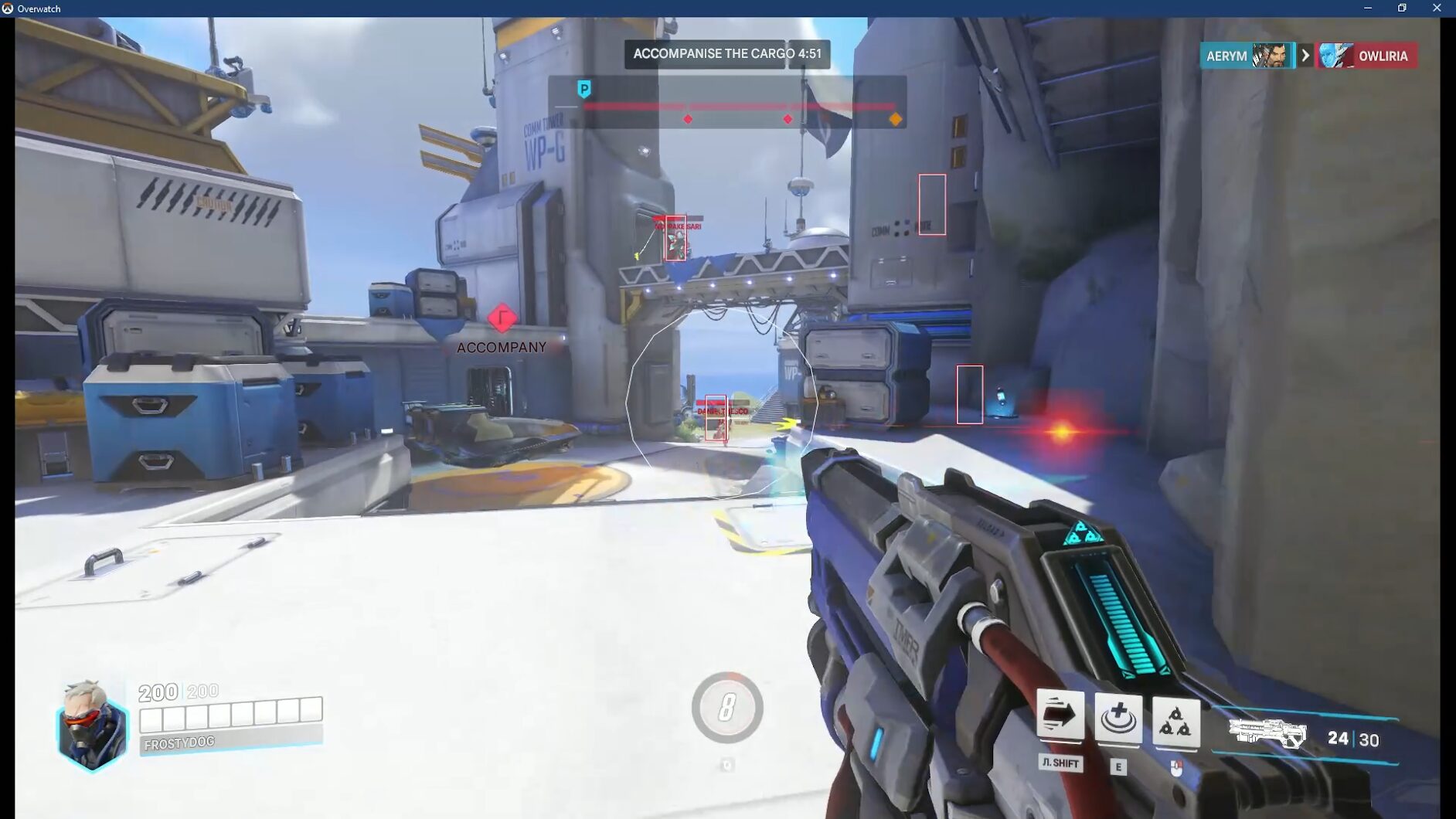
The Aimbot includes adjustable FOV, smoothing, sensitivity synchronization and a custom activation key. Enemy ESP provides a clear visual box around supported opponents, while the visible FOV indicator helps users understand the current active targeting area.
Main Advantages
- Configurable Overwatch 2 Aimbot
- Aimbot Vector targeting system
- Adjustable Aimbot FOV
- Smooth aiming control
- Sensitivity synchronization
- Custom Aimbot activation key
- Team-switching support
- Enemy Box ESP
- Visible Aimbot FOV circle
- Compatible with the Steam version of Overwatch 2
- Supports compatible Intel and AMD processors
- Works on supported versions of Windows 10 and Windows 11
- Supports Windowed and Fullscreen Windowed modes
- Simple interface with a focused feature set
Orion Overwatch 2 Cheat Features
Orion includes two primary feature categories:
- Aimbot
- ESP and visual information
These functions are designed to work together. ESP provides information about supported enemies, while the Aimbot assists with target tracking inside the configured FOV.
Advanced Overwatch 2 Aimbot
The Orion Aimbot provides configurable aiming assistance for supported enemy targets.
Users can adjust the active targeting radius, aiming smoothness, sensitivity values and activation controls according to their preferred setup.
Core Aimbot Features
- Aimbot Vector
- Adjustable Aimbot FOV
- Smooth aiming
- Sensitivity control
- Custom Aimbot Key
- Team Switching
- Visible FOV circle
The available settings allow users to create a faster combat-oriented configuration or a smoother and more controlled aiming profile.
Aimbot Vector
Aimbot Vector is the central targeting system used by Orion.
It calculates the supported direction between the current aim position and the selected target, allowing the software to assist with aim movement inside the configured targeting area.
The system is designed to work alongside the selected FOV, smoothness and sensitivity values.
Aimbot Vector Benefits
- Helps track supported enemy targets
- Works with adjustable FOV
- Works with custom smoothness values
- Responds according to selected sensitivity settings
- Can be activated through a custom key
- Integrates with the Orion ESP system
The exact targeting behavior depends on the active settings, selected hero, mouse sensitivity and current combat situation.
Adjustable Aimbot FOV
The Aimbot FOV determines how large the active target-selection area is around the center of the screen.
A smaller FOV creates a more focused selection area. A larger FOV allows Orion to consider supported targets across a wider part of the display.
FOV Configuration Options
- Adjust the Aimbot FOV value
- Display the active targeting area
- Create a narrow targeting profile
- Create a wider combat profile
- Combine FOV with smooth aiming
- Adapt the value to different resolutions
- Save a preferred setup for regular use
A narrower FOV can help keep target selection focused near the crosshair. A wider FOV may be useful during chaotic team fights where several opponents move quickly across the screen.
Draw FOV
The Draw FOV option displays the active Aimbot radius directly on the screen.
This visual circle helps users understand which detected enemies are currently inside the targeting area.
Draw FOV Uses
- Configure the Aimbot more accurately
- Check the current targeting radius
- Compare different FOV values
- Understand target-selection behavior
- Adapt the Aimbot to screen resolution
- Create separate close-range and general profiles
Users who prefer a cleaner screen can disable the visible FOV circle after completing the setup.
Smooth Aiming
Smooth aiming controls how gradually Orion moves toward a selected target.
Higher smoothing values produce slower and more progressive movement. Lower values provide a faster response.
Smoothness Can Be Adjusted For
- Different mouse sensitivities
- Different heroes
- Close-range engagements
- Medium-distance fights
- Faster target acquisition
- More gradual target tracking
Smoothness works together with FOV and sensitivity settings. Finding a balanced combination can create a more comfortable aiming profile for the selected hero and weapon style.
Sensitivity Control
Orion includes sensitivity controls designed to coordinate the Aimbot with the user’s in-game settings.
Correct sensitivity values are important because Overwatch 2 heroes can use very different aiming styles.
Some heroes require precise tracking, while others rely on faster movement or wider target transitions.
Sensitivity Control Benefits
- Better synchronization with in-game sensitivity
- More consistent aim movement
- Improved compatibility with different mouse settings
- Easier adjustment for individual heroes
- More predictable Aimbot behavior
- Better control over smoothness
Users should make sure that the configured Orion sensitivity matches the relevant Overwatch 2 settings.
Custom Aimbot Key
The Aimbot can be assigned to a preferred keyboard or mouse button.
This gives users direct control over when aiming assistance is active.
Aimbot Key Advantages
- Activate the feature only when needed
- Use a mouse side button
- Use a preferred keyboard key
- Integrate Orion into an existing control layout
- Avoid continuous activation
- Switch between regular aiming and assisted aiming
A custom activation key is especially useful in Overwatch 2 because different heroes and situations may require different levels of aiming assistance.
Team Switching
Orion includes Team Switching support for situations where team information changes or must be updated.
This function helps the software distinguish supported friendly and enemy players correctly.
Team Switching Benefits
- Adapt to the current team assignment
- Keep enemy information accurate
- Reduce incorrect target selection
- Use during supported mode changes
- Maintain correct ESP behavior
Correct team recognition is important for both Aimbot and ESP functionality.
Enemy ESP
The Orion ESP system displays supported enemies through a simple 2D box.
This provides additional visual information without covering the screen with excessive text or complex indicators.
ESP Features
- Draw Enemy ESP
- 2D Box ESP
- Clear enemy highlighting
- Works with the Aimbot system
- Works with supported team recognition
- Provides additional battlefield awareness
Draw ESP
Draw ESP enables the primary enemy-visualization feature.
When active, supported enemy players can be displayed through the selected Orion visual style.
The current feature set focuses on a clear and practical 2D box rather than a crowded overlay with unnecessary details.
2D Box ESP
Box ESP places a rectangular frame around supported detected enemies.
This makes player positions easier to identify against Overwatch 2 maps, effects, abilities and fast-moving team fights.
Box ESP Benefits
- Clear enemy-position display
- Simple visual presentation
- Reduced interface clutter
- Useful during crowded fights
- Works alongside Aimbot FOV
- Helps identify supported opponents quickly
The minimal visual style makes Orion suitable for users who prefer essential information rather than an overloaded ESP menu.
Using Aimbot and ESP Together
The Aimbot and ESP features complement each other.
ESP provides a visual reference for supported enemies, while the Aimbot operates according to the selected FOV, sensitivity and smoothing settings.
A typical Orion configuration may include:
- Enemy Box ESP enabled
- Draw FOV enabled during setup
- Medium FOV value
- Custom smoothness
- Correct sensitivity values
- Aimbot assigned to a mouse button
- Team Switching configured correctly
Users can adjust these options until the software matches their preferred control style.
Hero and Playstyle Flexibility
Overwatch 2 includes heroes with very different weapons and aiming requirements.
Orion’s configurable FOV, smoothness and sensitivity controls allow users to adapt the Aimbot to different situations.
Possible configuration styles include:
Tracking-Focused Setup
Suitable for heroes that require continuous target tracking.
- Moderate FOV
- Smooth aim movement
- Sensitivity matched closely to the game
- Aimbot activated while holding the selected key
Precision Setup
Suitable for more focused aiming behavior.
- Smaller FOV
- Higher smoothness
- Controlled activation
- Enemy Box ESP enabled
Fast Combat Setup
Suitable for faster engagements.
- Wider FOV
- Lower smoothing
- Quick Aimbot activation
- Visible FOV circle during testing
The best configuration depends on the hero, resolution, sensitivity and individual preference.
Simple and Focused Interface
Orion is designed around a compact feature set.
The interface focuses on:
- Aimbot controls
- FOV settings
- Smoothness
- Sensitivity
- Activation key
- Team Switching
- Enemy ESP
- Draw FOV
This makes the software easier to configure than products containing large numbers of unused options.
Users can quickly locate the necessary setting, make adjustments and return to the game without navigating through several complicated menu categories.
Steam Version Support
Orion is designed for the Steam version of Overwatch 2.
Other versions or launch methods should not be assumed to be compatible unless they are specifically listed in the current product information.
Before purchasing, confirm that Overwatch 2 is installed and launched through Steam.
Supported Game Display Modes
Orion supports:
- Windowed mode
- Fullscreen Windowed mode
Exclusive Fullscreen should not be assumed to work unless it is specifically added to the current compatibility information.
Recommended Display Configuration
For the most reliable setup:
- Launch Overwatch 2.
- Open the video settings.
- Select Windowed or Fullscreen Windowed.
- Apply the changes.
- Restart the game if required.
- Follow the Orion launch instructions.
Intel and AMD Processor Support
Orion supports compatible processors from both major manufacturers.
Supported CPU Brands
- Intel
- AMD
The computer must also meet the remaining Windows and software requirements.
Processor support alone does not guarantee compatibility if the operating system, game version or display mode is unsupported.
Windows Compatibility
Orion supports 64-bit editions of Windows 10 and Windows 11.
Supported Windows Versions
- Windows 10 2004
- Windows 10 20H2
- Windows 10 21H1
- Windows 10 21H2
- Windows 10 22H2
- Windows 11 23H2
- Windows 11 24H2
- Windows 11 25H2
Compatibility may change after Overwatch 2, Windows or anti-cheat updates.
Always check the current Orion product status before purchasing, activating or launching the software.
Anti-Cheat Compatibility
Orion is designed for compatibility with the current Overwatch 2 anti-cheat environment according to the available product information.
Anti-cheat systems can be updated without notice, and those updates may temporarily affect software compatibility.
Important Status Information
- Check the current product status before purchase
- Use only the latest Orion version
- Do not launch outdated files
- Follow the supplied setup guide
- Wait for confirmation after major game updates
- Do not assume permanent compatibility
No third-party product can guarantee permanent undetected status.
Video, Streaming and Screenshot Visibility
Orion Overwatch 2 does not include video or screenshot invisibility.
The software visuals may appear in recordings, screenshots, streams or screen-sharing sessions.
Capture Protection Status
- Stream Bypass: Not included
- Screenshot protection: Not included
- Video-capture invisibility: Not supported
- Screen-sharing protection: Not guaranteed
Users should not assume that Aimbot indicators, ESP boxes, FOV circles or the menu will remain hidden during recording or screen sharing.
Product Compatibility
- Game: Overwatch 2
- Supported Game Version: Steam
- Software: Orion Overwatch 2 Cheat
- CPU Support: Intel and AMD
- Operating Systems: Windows 10 and Windows 11 x64
- Supported Builds: 2004 through 25H2 according to the listed compatibility
- Display Modes: Windowed and Fullscreen Windowed
- Aimbot: Included
- Aimbot Vector: Included
- Adjustable FOV: Included
- Smooth Aiming: Included
- Sensitivity Control: Included
- Custom Aimbot Key: Included
- Team Switching: Included
- Enemy ESP: Included
- 2D Box ESP: Included
- Draw FOV: Included
- Stream Bypass: Not included
- Screenshot Protection: Not included
System Requirements
Before purchasing Orion Overwatch 2 Cheat, make sure the computer meets the current requirements.
- Steam version of Overwatch 2
- Compatible Intel or AMD processor
- Supported 64-bit version of Windows 10 or Windows 11
- Windowed or Fullscreen Windowed game mode
- Stable internet connection
- Working Overwatch 2 installation
- Administrator access may be required
- Current supported system drivers
- Latest available Orion software version
- Conflicting overlays or background applications may need to be closed
- Installation instructions must be followed in the correct order
Important Setup Information
For the best installation experience:
- Confirm that Overwatch 2 is installed through Steam.
- Verify that your Windows version is supported.
- Make sure the system uses a compatible Intel or AMD processor.
- Set Overwatch 2 to Windowed or Fullscreen Windowed mode.
- Download the latest available Orion files.
- Close conflicting applications when required.
- Follow the provided launch order.
- Enter the license information when requested.
- Configure the in-game sensitivity values.
- Match the Orion sensitivity settings.
- Select the preferred Aimbot FOV.
- Configure smooth aiming.
- Assign the Aimbot Key.
- Enable Enemy ESP when required.
- Check the current product status before every launch.
Skipping installation steps or using outdated files may cause launch or compatibility problems.
What You Receive After Purchase
After completing the order, you receive the available Orion product access and setup information.
- Orion Overwatch 2 license
- Download access
- Installation instructions
- Aimbot Vector
- Adjustable Aimbot FOV
- Smooth aiming
- Sensitivity controls
- Custom Aimbot Key
- Team Switching
- Enemy Box ESP
- Draw FOV
- Product support
Stream Bypass and screenshot protection are not included.
Frequently Asked Questions
Does Orion include an Aimbot?
Yes. Orion includes Aimbot Vector, adjustable FOV, smooth aiming, sensitivity control and a custom activation key.
What is Aimbot Vector?
Aimbot Vector is the targeting system used by Orion to assist with supported aim movement toward selected targets.
Can I adjust the Aimbot FOV?
Yes. The active targeting radius can be adjusted according to personal preference.
Can the active FOV be displayed?
Yes. Draw FOV displays the current targeting area on the screen.
Does Orion include smooth aiming?
Yes. Smoothness can be adjusted to change how gradually the aim moves toward a selected target.
Does Orion use the in-game sensitivity?
Orion includes sensitivity controls designed to work with the user’s Overwatch 2 sensitivity settings.
Can I assign a custom Aimbot key?
Yes. The Aimbot can be activated through a selected keyboard or mouse button.
Does Orion include ESP?
Yes. Orion includes enemy ESP with a clear 2D box display.
What information does the ESP show?
The current listed ESP function highlights supported enemy players through 2D boxes.
Does Orion support Intel processors?
Yes. Compatible Intel processors are supported.
Does Orion support AMD processors?
Yes. Compatible AMD processors are supported.
Does Orion work on Windows 11?
Yes. Supported 64-bit versions of Windows 11 are compatible according to the current product status.
Does Orion support Windows 11 24H2 and 25H2?
Yes. Both builds are included in the supplied compatibility information, subject to the current product status.
Does Orion support Fullscreen mode?
Orion supports Windowed and Fullscreen Windowed modes. Exclusive Fullscreen is not currently listed.
Does it work with the Battle.net version?
The currently listed supported game version is Steam. Other versions should not be assumed to work.
Is Stream Bypass included?
No. Stream Bypass and capture invisibility are not included.
Will Orion visuals appear in screenshots or recordings?
They may appear. Video and screenshot protection is not supported.
Is permanent undetected status guaranteed?
No. No third-party software can guarantee permanent undetected status. Overwatch 2 and anti-cheat updates may affect compatibility at any time.
Do I receive setup instructions?
Yes. Current installation and setup information is included after purchase.
Buy Orion Overwatch 2 Cheat
Orion Overwatch 2 Cheat is a focused option for users looking for an Overwatch 2 cheat with Aimbot Vector, adjustable FOV, smooth aiming, sensitivity controls and Enemy Box ESP.
Its compact feature set makes it easy to configure without navigating through an overloaded menu, while the custom activation key and adjustable targeting settings provide control over how the Aimbot behaves.
Before purchasing, confirm that you use the Steam version of Overwatch 2, a compatible Intel or AMD processor, a supported 64-bit Windows build and Windowed or Fullscreen Windowed mode.
Choose your preferred license duration, complete the order and follow the included instructions to begin using Orion Overwatch 2 Cheat from CrazyCapyStore.
| Duration | 1 day, 7 days, 30 days |
|---|
Reviews
There are no reviews yet.