
Mason Enlisted Cheat – Full and Chams Versions
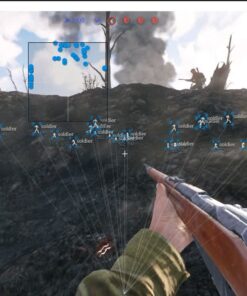
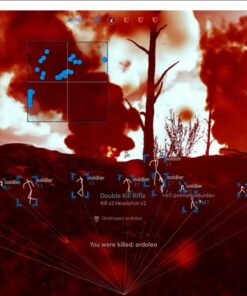
Mason Enlisted Cheat is a private external software solution for the Steam version of Enlisted, available in two separate variations: Mason Full and Mason Chams.
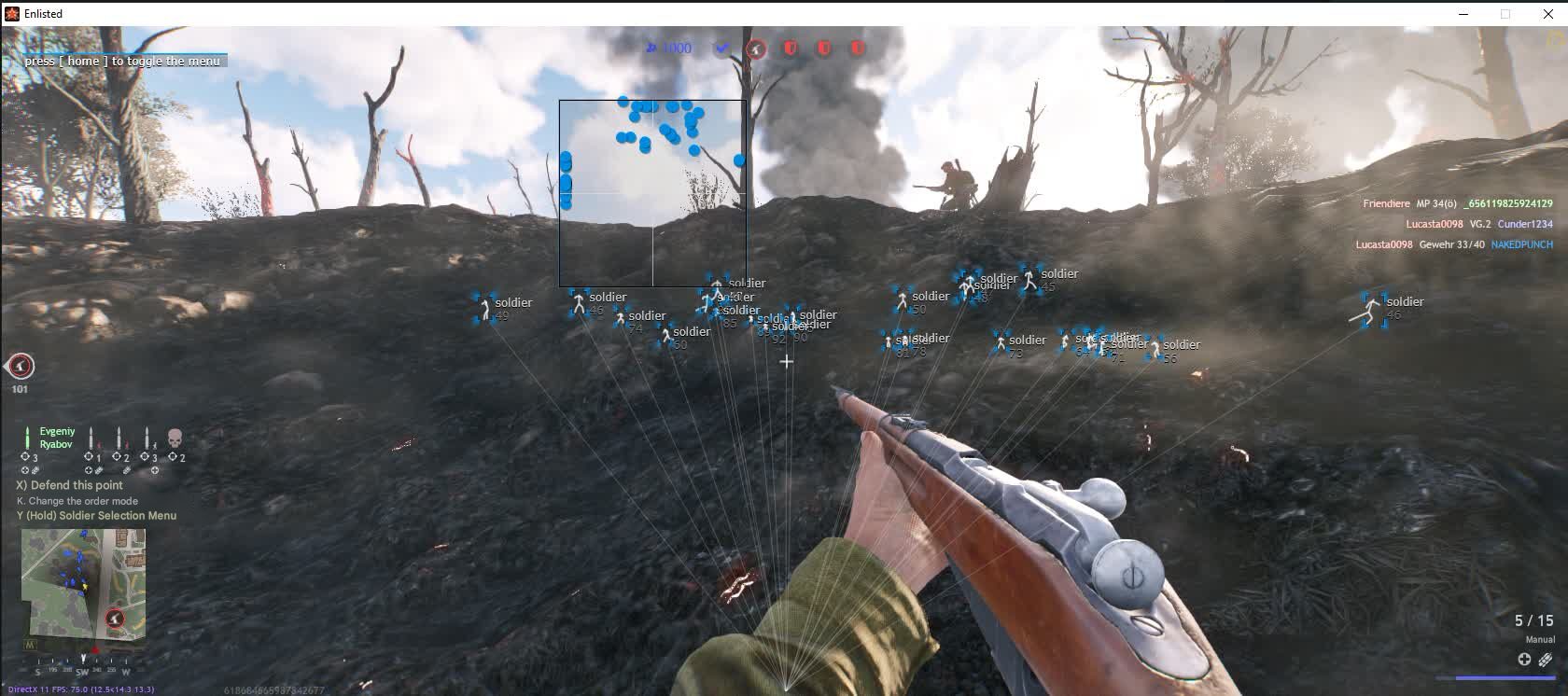
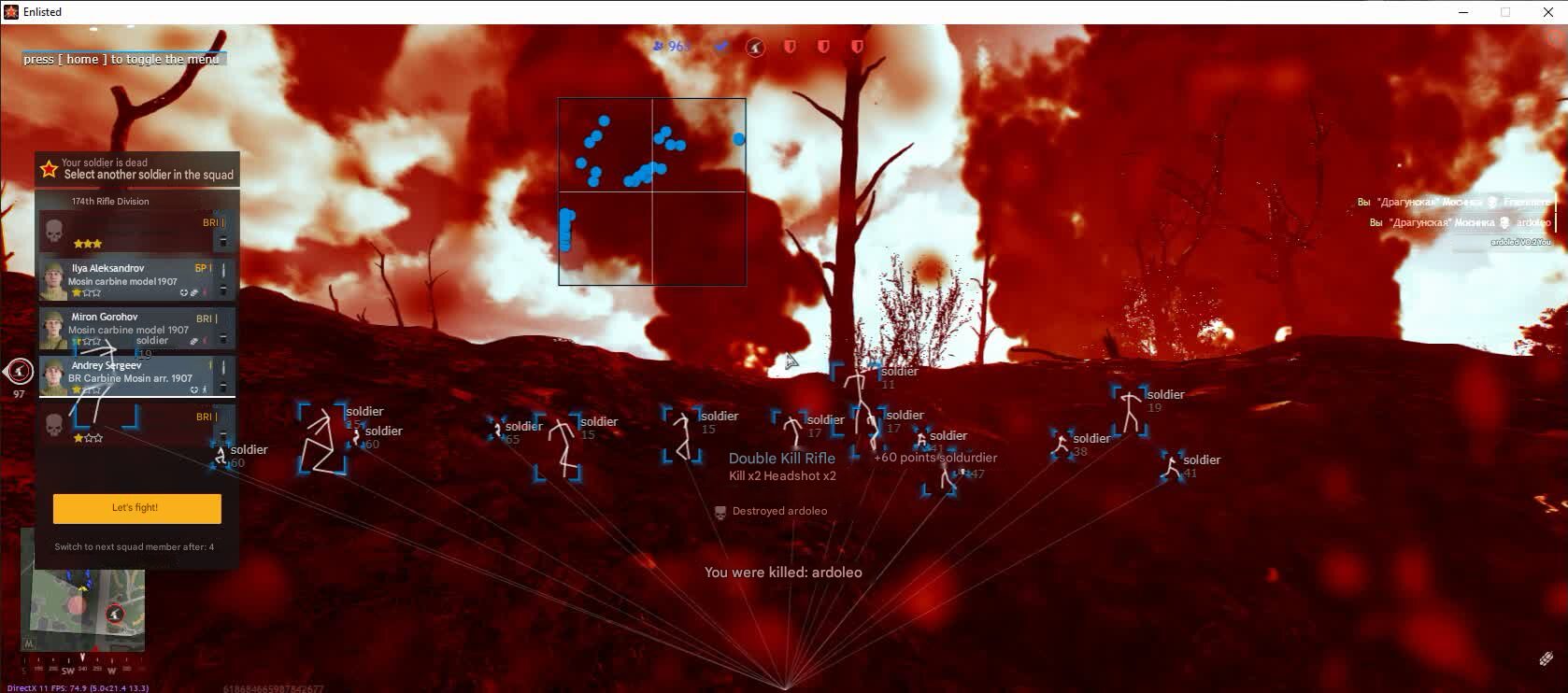
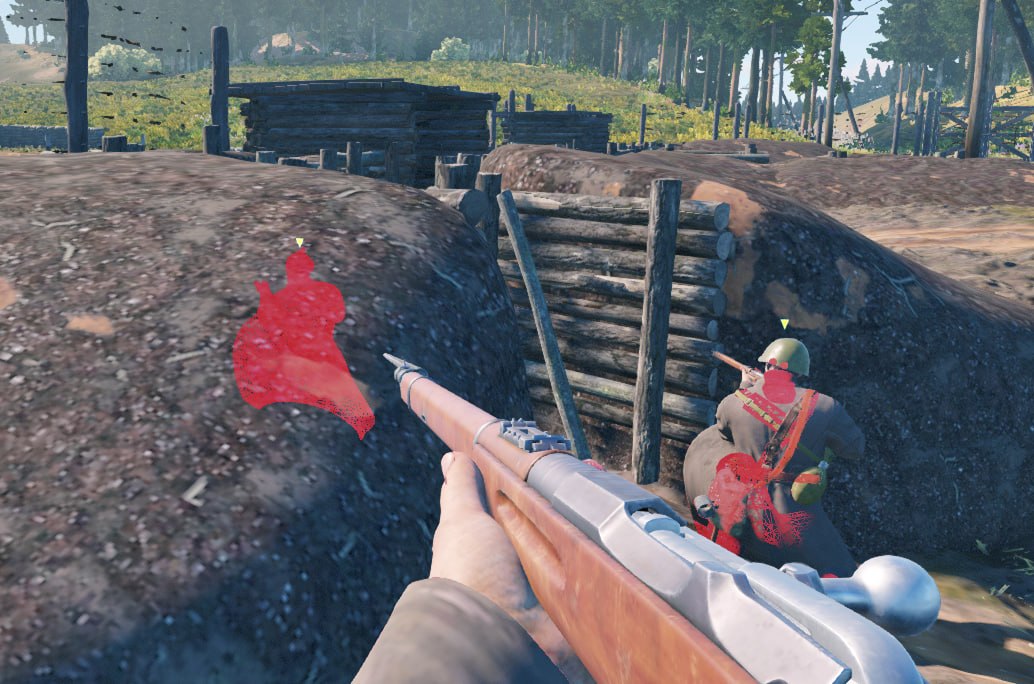
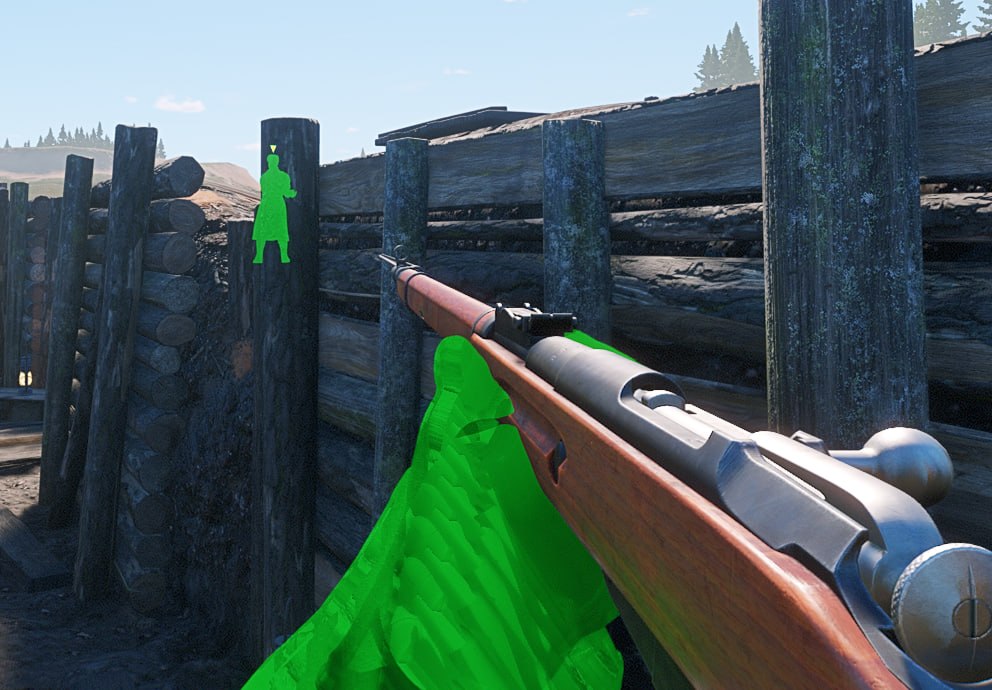
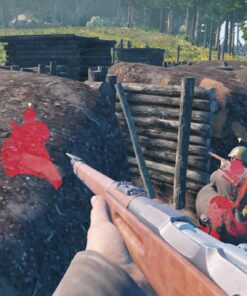
The Full version combines a configurable Aimbot, Player ESP, Vehicle ESP, Radar, custom Crosshair, configuration management and emergency controls inside one organized menu. The Chams version offers a simpler approach, automatically highlighting detected players in pink without requiring any manual configuration or menu navigation.
Both variations are designed for users who want improved battlefield awareness, clear visual information and compatibility with supported Intel and AMD systems running 64-bit editions of Windows 10 or Windows 11.
Choose the variation that best matches your preferred experience:
- Mason Full for Aimbot, detailed ESP, Radar and advanced configuration.
- Mason Chams for automatic player highlighting with no menu or setup complexity.
Two Mason Enlisted Cheat Variations in One Product
This product page includes both available Mason versions. Select the preferred variation before completing your purchase.
Mason Full Version
The Full version includes the complete Mason feature set:
- Configurable Aimbot
- Player ESP
- Soldier names
- Bounding boxes
- Skeleton ESP
- Snaplines
- Distance information
- Vehicle ESP
- Team filtering
- Radar
- Custom Crosshair
- Config import and export
- Panic Key
- Adjustable display distances
- Menu and performance settings
Mason Chams Version
The Chams version is designed for users who want a lightweight and automatic visual solution.
- Players are highlighted in pink
- Features activate automatically
- No menu is included
- No manual configuration is required
- No Aimbot is included
- No Radar or detailed ESP menu is included
The Chams variation is the simpler option, while Mason Full is intended for users who want complete control over aiming, visuals and interface settings.
Why Choose Mason for Enlisted?
Enlisted features large-scale battles with infantry, vehicles, AI-controlled soldiers and combat taking place across wide areas. Important targets can be difficult to identify through buildings, vegetation, smoke and crowded environments.
Mason provides two different solutions for these situations.
The Full variation offers detailed information and configurable targeting assistance, while the Chams variation focuses on fast and automatic player visibility.
Main Advantages
- Two variations available through one product page.
- Supports the Steam version of Enlisted.
- Works with any supported game display mode.
- Compatible with Intel and AMD processors.
- Supports Easy Anti-Cheat according to the current product status.
- Full capture protection for supported video and screenshot methods.
- Compatible with supported Windows 10 and Windows 11 x64 builds.
- Full version includes Aimbot, ESP, Radar and Config controls.
- Chams version activates automatically without a menu.
- USB flash drive is used as part of the installation process.
- Supports modern UEFI and GPT-based systems.
- Designed for users who want either full customization or a minimal automatic visual option.
Mason Enlisted Cheat Full Version
Mason Full is the complete version of the software. It includes aiming assistance, detailed visual information, vehicle tracking, Radar, custom interface elements and configuration tools.
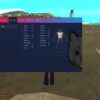
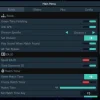
The menu is divided into four main sections:
- Aimbot
- Visualization
- Configuration
- Graphical User Interface
Each category contains practical settings that can be adjusted according to the user’s preferred gameplay style.
Mason Full Aimbot
The Mason Aimbot provides configurable aiming assistance with control over activation, smoothness, targeting radius and movement behavior.
Aimbot Features
- Enable or disable aiming assistance.
- Assign a custom Aim Key.
- Invert the Aimbot pitch movement.
- Adjust aiming smoothness.
- Configure the active aiming radius.
- Adjust the Aimbot step and response sharpness.
- Display the active aiming radius through the interface.
- Save preferred Aimbot settings inside a configuration.
Enable Aimbot
The Enabled option controls whether aiming assistance is active.
Users can keep the feature disabled while adjusting other software settings and activate it only when needed.
This provides direct control over the Aimbot without requiring the entire Mason software to be restarted.
Custom Aim Key
Mason allows the Aimbot to be assigned to a preferred mouse or keyboard button.
A custom activation key makes it easier to integrate the software into an existing Enlisted control layout.
Possible choices may include:
- Mouse side button
- Keyboard key
- Aim button
- Other supported input
The selected key determines when the Aimbot becomes active.
Invert Aim Pitch
The Invert Aim Pitch option changes the supported vertical movement behavior of the Aimbot.
This setting may be useful for users with alternative mouse configurations or inverted aiming preferences.
It can be enabled or disabled independently from the remaining aiming options.
Aim Smooth
Aim Smooth controls how gradually the Aimbot moves toward the selected target.
A higher smoothness value creates slower and more progressive movement, while a lower value produces faster target acquisition.
This allows Mason Full to be configured for different preferences:
- More gradual aiming
- Faster combat-focused aiming
- Close-range engagements
- Medium-distance combat
- Different mouse sensitivities
Aim Radius
The Aim Radius determines the size of the active target-selection area.
A smaller radius creates a more focused targeting zone near the center of the screen. A larger radius allows the software to consider targets across a wider area.
The selected radius can be displayed visually through the Show Aim Radius option.
Aim Step
Aim Step controls the sharpness and response behavior of the aiming movement.
This setting works together with Aim Smooth and Aim Radius, allowing users to fine-tune how quickly and directly the Aimbot reacts.
A balanced combination of these settings can be saved through the configuration system for future use.
Player ESP and Visualization
The Visualization section provides additional information about soldiers and vehicles detected during a match.
Users can enable the complete visual system or activate only selected elements to keep the screen clean.
Visualization Features
- Enable or disable ESP.
- Show soldiers.
- Display player bounding boxes.
- Display soldier names.
- Display skeletons.
- Display snaplines.
- Display player distance.
- Display vehicles.
- Ignore teammates.
- Set the maximum player display distance.
- Set the maximum vehicle and object display distance.
Enable ESP
The Enabled option activates the main Mason visual system.
When enabled, the selected Soldier ESP and Vehicle ESP elements can appear according to the current configuration.
Users can disable individual options if they prefer a more minimal interface.
Show Soldiers
The Show Soldiers option displays supported detected infantry units.
This is one of the primary visual features in Mason Full and can be combined with:
- Bounding Box
- Soldier Name
- Skeleton
- Snapline
- Distance
These elements provide different levels of battlefield information.
Bounding Box ESP
Bounding Box ESP places a visual frame around detected soldiers.
This makes player models easier to recognize against complex environments, buildings, terrain and battlefield effects.
Bounding boxes can be used alone or combined with names, skeletons and distance information.
Soldier Name ESP
Soldier Name ESP displays the supported name or identifier of a detected soldier.
This can help users distinguish between different detected characters and connect visual information with specific targets.
Skeleton ESP
Skeleton ESP displays the approximate body structure and position of detected soldiers.
It can provide additional information about posture and movement, especially when targets are partially hidden by terrain or environmental objects.
Skeleton ESP can be combined with Box ESP for a more detailed visual layout.
Snapline ESP
Snaplines draw a directional line toward detected soldiers.
This provides a quick visual reference and can make it easier to understand where a target is positioned in relation to the center or edge of the display.
Snaplines are especially useful in large battles where several soldiers may be detected at the same time.
Player Distance ESP
Distance ESP displays how far away a detected soldier is.
Enlisted includes both close-range infantry combat and longer engagements, making distance information useful for understanding nearby and distant threats.
Distance information can help users:
- Identify the closest detected soldiers.
- Separate immediate threats from distant targets.
- Adjust weapon choice.
- Monitor approaching enemies.
- Create a cleaner distance-limited ESP profile.
Vehicle ESP
Mason Full can display supported vehicles in addition to soldiers.
Vehicle information is useful in Enlisted because tanks, transport and other battlefield vehicles can appear across large areas.
Vehicle ESP Benefits
- Locate supported vehicles.
- Monitor approaching armor or transport.
- Separate vehicle awareness from infantry information.
- Configure a separate maximum vehicle distance.
- Use Vehicle ESP together with Radar.
Ignore Team
The Ignore Team option prevents friendly soldiers from being displayed through the same visual system as hostile targets.
This can significantly reduce screen clutter during large team battles.
Ignore Team Benefits
- Focus on opponents.
- Reduce unnecessary friendly ESP.
- Avoid visual confusion.
- Keep the interface cleaner.
- Improve readability in crowded combat areas.
Player Distance Limit
The Player Distance Limit determines how far away detected soldiers can be displayed.
A lower value creates a cleaner close-range profile. A higher value provides more information across wider battlefield areas.
The correct value depends on:
- Map size
- Preferred weapon
- Screen resolution
- Desired level of information
- Computer performance
Vehicle Distance Limit
The Vehicle Distance Limit controls the maximum display range for vehicles and other supported objects.
Separating player and vehicle ranges allows users to keep soldier information focused while still monitoring vehicles across longer distances.
Radar
Mason Full includes a built-in Radar for additional positional awareness.
Radar provides a different type of information from regular ESP. ESP displays information directly around detected entities, while Radar presents supported positions through a separate interface element.
Radar Features
- Enable or disable Radar.
- Adjust Radar size.
- Adjust Radar radius.
- Monitor supported detected entities.
- Use Radar together with Soldier ESP.
- Use Radar together with Vehicle ESP.
- Save Radar settings inside configurations.
Enable Radar
The Enable Radar option controls whether the Radar interface is visible.
Users can keep Radar active while reducing regular ESP elements for a cleaner game display.
Radar Size
Radar Size controls the physical size of the Radar interface on the screen.
A smaller Radar uses less screen space, while a larger Radar provides more room for positional information.
The preferred size depends on resolution and personal interface preferences.
Radar Radius
Radar Radius determines how much surrounding area is represented through the Radar.
A smaller radius focuses on nearby activity. A larger radius provides a wider positional overview.
Radar size and radius can be adjusted independently.
Custom Crosshair
Mason Full includes a custom Crosshair option.
This adds an additional aiming reference at the center of the display.
Crosshair Benefits
- Provide a consistent aiming point.
- Use with weapons that have limited default Crosshair information.
- Combine with the visible Aimbot radius.
- Keep an aiming reference available during movement.
- Save the setting inside a Config.
Show Aim Radius
Show Aim Radius displays the current Aimbot targeting zone.
This makes it easier to understand which detected soldiers are inside the active selection area.
The radius can be displayed during configuration and hidden later if a cleaner screen is preferred.
Configuration System
Mason Full includes several configuration-management options.
Configuration Features
- Save CPU resources.
- Assign a Menu Key.
- Assign a Panic Key.
- Load a configuration from the clipboard.
- Save a configuration to the clipboard.
Save CPU Resources
The Save CPU option is designed to reduce the amount of processor resources used by supported Mason processes.
This may help users balance software responsiveness and system performance.
The result can depend on the processor, game settings and active visual features.
Custom Menu Key
The Menu Key controls how the Mason interface is opened and hidden.
Users can assign a convenient keyboard button and access the menu only when settings need to be changed.
A custom Menu Key prevents conflicts with regular Enlisted controls.
Panic Key
The Panic Key provides an emergency method for disabling the software.
This can be useful when users want to quickly hide or stop active features without navigating through the full interface.
Panic Key Benefits
- Quickly disable the software.
- Hide active visual features.
- Avoid opening the menu manually.
- Assign a convenient emergency key.
- Keep direct control over the software state.
Load Config from Clipboard
This feature allows a supported Mason configuration to be loaded from the Windows clipboard.
Users can copy compatible configuration data and apply it without manually rebuilding every setting.
Save Config to Clipboard
The Save Config option copies the current supported configuration to the clipboard.
This makes it easier to:
- Back up preferred settings.
- Transfer Configs.
- Share supported settings.
- Restore a previous setup.
- Keep multiple configuration profiles.
Mason Chams Version
Mason Chams is the lightweight variation of this product.
It does not include a menu, Aimbot, Radar or manual configuration options. Its visual function activates automatically after the software is launched correctly.
Mason Chams Features
- Automatic player highlighting.
- Pink player color.
- No menu.
- No manual settings.
- No Aimbot.
- No Radar.
- No Config System.
- Simple launch-and-use design.
Automatic Pink Player Highlighting
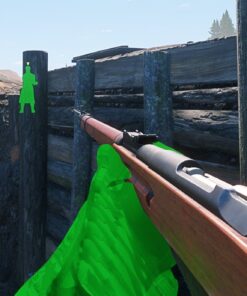
The Chams version highlights supported detected players in pink.
This creates a clear contrast between character models and the surrounding environment.
Pink highlighting can make soldiers easier to recognize against:
- Terrain
- Buildings
- Vegetation
- Shadows
- Smoke
- Crowded battlefield scenes
No Menu Required
Mason Chams does not include a graphical menu.
All available functionality activates automatically, removing the need to configure keys, distances, boxes or other settings.
This makes the Chams version suitable for users who prefer simplicity over advanced customization.
Full vs Chams: Which Version Should You Choose?
Choose Mason Full When You Need:
- Aimbot
- Adjustable aiming smoothness
- Aim Radius
- Soldier ESP
- Vehicle ESP
- Box ESP
- Skeleton ESP
- Names and distance
- Radar
- Custom Crosshair
- Team filtering
- Config management
- Panic Key
- Detailed controls
Choose Mason Chams When You Need:
- Simple player highlighting
- Automatic activation
- No menu
- No configuration process
- A lightweight visual-only option
- Pink player Chams
The selected variation cannot be assumed to include features from the other version. Review the feature comparison carefully before purchasing.
Full and Chams Feature Comparison
Mason Full
- Aimbot: Included
- Soldier ESP: Included
- Vehicle ESP: Included
- Radar: Included
- Crosshair: Included
- Config System: Included
- Menu: Included
- Panic Key: Included
- Pink Chams: Not listed as the primary visual mode
Mason Chams
- Aimbot: Not included
- Detailed Soldier ESP: Not included
- Vehicle ESP: Not included
- Radar: Not included
- Config System: Not included
- Menu: Not included
- Automatic Pink Player Highlighting: Included
Stream and Capture Protection
Mason supports invisibility in compatible video recordings and screenshots according to the current product information.
This feature is designed to provide additional control over whether supported software visuals appear in selected capture methods.
Capture Protection May Support
- Compatible recording applications
- Supported video capture
- Compatible screenshot methods
- Selected screen-sharing configurations
Capture behavior can depend on:
- Recording software
- Capture source
- Screenshot method
- Windows configuration
- Active Mason variation
- Current software version
Always test the selected capture method before recording, streaming or sharing the screen.
Steam Version Support
Mason is designed for the Steam version of Enlisted.
Other launchers or game versions should not be assumed to be compatible unless they are specifically added to the current product requirements.
Before purchasing, confirm that Enlisted is installed and launched through Steam.
Supported Game Modes
Mason supports any listed Enlisted display mode according to the current compatibility information.
This may include:
- Windowed
- Borderless Windowed
- Fullscreen
Users can select the game mode that best matches their computer and display preferences.
Intel and AMD Processor Support
Mason supports compatible processors from both major CPU manufacturers:
- Intel
- AMD
The computer must also meet all remaining BIOS, Windows, virtualization and disk requirements.
Processor support alone does not guarantee compatibility if Secure Boot, Hyper-V, virtualization, GPT or UEFI are configured incorrectly.
Windows Compatibility
Mason supports 64-bit editions of Windows 10 and Windows 11.
Supported Windows Builds
- Windows 10 2004
- Windows 10 20H2
- Windows 10 21H1
- Windows 10 21H2
- Windows 10 22H2
- Windows 11 23H2
- Windows 11 24H2
- Windows 11 25H2
- Windows 11 26H1
Exact compatibility may change after Windows, Enlisted or Easy Anti-Cheat updates. Always check the current product status before purchasing or activating a license.
Easy Anti-Cheat Compatibility
- Anti-Cheat: Easy Anti-Cheat
- Compatibility: Supported according to the current Mason product status
Anti-cheat updates can affect third-party software at any time. Users should verify the current status before every launch.
UEFI BIOS Requirement
The computer must use UEFI boot mode.
Legacy BIOS configurations should not be assumed to work.
UEFI is required together with the GPT disk format and the remaining virtualization settings.
GPT System Disk Requirement
The Windows system disk must use the GPT partition format.
MBR-based system installations are not supported according to the current product requirements.
Users should verify the disk format before purchasing.
Converting the system disk or reinstalling Windows may be necessary on unsupported configurations.
Virtualization Requirements
The required virtualization features must be enabled.
Required Options
- Intel VT-x or equivalent virtualization support
- Intel VT-d where available and required
- AMD virtualization support on compatible systems
- Hyper-V enabled in Windows
The exact BIOS option names depend on the motherboard and processor.
Possible labels include:
- Intel Virtualization Technology
- VT-x
- VT-d
- SVM Mode
- AMD-V
- IOMMU
- CPU Virtualization
Hyper-V Must Be Enabled
Hyper-V is required for the supported Mason setup.
Users may need to enable Hyper-V through Windows Features before installation.
Changing Hyper-V settings may require a system restart.
The exact installation steps should be followed according to the included setup guide.
Secure Boot Must Be Disabled
Secure Boot must be disabled for the supported Mason configuration.
Before changing BIOS settings, users should make sure they understand how the current Windows installation is configured.
Incorrect BIOS changes may affect system startup. Follow the supplied installation instructions carefully.
USB Flash Drive Required
A USB flash drive is required as part of the Mason installation or launch process.
USB Requirement
- USB flash storage device required
- Must be available during the setup process
- May be used for required software files or boot-related components
- Must follow the provided formatting and setup instructions
Do not assume the product can be installed without a USB drive.
The necessary capacity, format and preparation steps will be explained in the current setup guide.
Product Compatibility
- Game: Enlisted
- Game Version: Steam
- Available Variations: Full and Chams
- Anti-Cheat: Easy Anti-Cheat
- Game Modes: Windowed, Borderless and Fullscreen
- Processors: Intel and AMD
- Operating Systems: Windows 10 and Windows 11 x64
- BIOS Mode: UEFI
- System Disk: GPT
- Virtualization: Must be enabled
- VT-x / VT-d: Required when supported
- Hyper-V: Must be enabled
- Secure Boot: Must be disabled
- USB Flash Drive: Required
- Capture Protection: Included for supported methods
- Aimbot: Full version only
- Radar: Full version only
- Detailed ESP: Full version only
- Pink Player Chams: Chams version only
- Menu: Full version only
System Requirements
Before purchasing Mason Enlisted Cheat, confirm that the system meets all listed conditions.
- Supported 64-bit Windows 10 or Windows 11 build.
- Steam version of Enlisted.
- Compatible Intel or AMD processor.
- UEFI boot mode.
- GPT-formatted Windows system disk.
- CPU virtualization enabled.
- VT-x and VT-d enabled where required.
- Hyper-V enabled.
- Secure Boot disabled.
- USB flash drive available.
- Stable internet connection.
- Administrator access may be required.
- Current supported drivers.
- Conflicting security applications or overlays may need to be closed.
- Installation instructions must be followed in the correct order.
Important Setup Information
For the best installation experience:
- Confirm that Enlisted is installed through Steam.
- Verify that the Windows version is supported.
- Confirm that the Windows system disk uses GPT.
- Make sure the computer boots in UEFI mode.
- Enable CPU virtualization in BIOS.
- Enable VT-x and VT-d when required.
- Enable Hyper-V in Windows.
- Disable Secure Boot.
- Prepare a USB flash drive according to the supplied guide.
- Download the latest available Mason files.
- Close conflicting software when required.
- Follow the correct launch order.
- Select the purchased Full or Chams variation.
- Configure Mason Full or allow Mason Chams to activate automatically.
- Check the current product status before every launch.
Skipping required steps may cause installation, launch or compatibility problems.
What You Receive After Purchase
After completing the order, you receive access to the selected Mason Enlisted variation and the required setup information.
Mason Full Delivery Includes
- Mason Full license.
- Download access.
- Installation instructions.
- Aimbot.
- Soldier ESP.
- Vehicle ESP.
- Radar.
- Custom Crosshair.
- Configuration tools.
- Panic Key.
- Capture protection.
- Product support.
Mason Chams Delivery Includes
- Mason Chams license.
- Download access.
- Installation instructions.
- Automatic pink player highlighting.
- Capture protection.
- Product support.
A USB flash drive is required but is not supplied digitally with the product.
Frequently Asked Questions
Is Mason available in more than one version?
Yes. Mason Enlisted is available in Full and Chams variations.
What is included in Mason Full?
Mason Full includes Aimbot, Soldier ESP, Vehicle ESP, Radar, Crosshair, configuration controls, Panic Key and additional interface settings.
What is included in Mason Chams?
Mason Chams automatically highlights supported players in pink. It does not include a menu or manual configuration options.
Does Mason Chams include an Aimbot?
No. The Chams variation is a visual-only option.
Does the Chams version have a menu?
No. All Chams functionality activates automatically.
Does Mason Full include Vehicle ESP?
Yes. Supported vehicles can be displayed with a separate maximum distance limit.
Can teammates be hidden?
Yes. Mason Full includes an Ignore Team option.
Does Mason Full include Radar?
Yes. Radar size and radius can be adjusted.
Can I save configurations?
Yes. Mason Full supports saving and loading compatible configuration data through the clipboard.
Is there an emergency disable key?
Yes. Mason Full includes a configurable Panic Key.
Does Mason support Intel processors?
Yes. Compatible Intel processors are supported.
Does Mason support AMD processors?
Yes. Compatible AMD processors are supported.
Does it support Windows 11?
Yes. Supported 64-bit Windows 11 builds are compatible according to the current product status.
Does Mason work in Fullscreen?
Yes. Any supported Enlisted display mode is listed as compatible.
Is a USB flash drive required?
Yes. A USB flash drive is required for the setup process.
Does Hyper-V need to be enabled?
Yes. Hyper-V must be enabled.
Does virtualization need to be enabled?
Yes. Required CPU virtualization features must be enabled.
Should Secure Boot be enabled?
No. Secure Boot must be disabled.
Does the Windows system disk need to use GPT?
Yes. GPT is required.
Does Mason support screenshots and video capture protection?
Yes. Capture invisibility is included for supported video and screenshot methods. Results can depend on the selected capture software and method.
Is permanent undetected status guaranteed?
No third-party software can guarantee permanent undetected status. Enlisted and Easy Anti-Cheat updates may affect compatibility at any time. Check the latest status before use.
Buy Mason Enlisted Cheat
Mason Enlisted Cheat is available in two variations for different types of users.
Choose Mason Full for a complete Enlisted package with Aimbot, Soldier ESP, Vehicle ESP, Radar, custom Crosshair and advanced configuration options.
Choose Mason Chams for automatic pink player highlighting with no menu and no complicated settings.
Select the preferred variation, confirm that the computer meets the UEFI, GPT, virtualization, Hyper-V, Secure Boot and USB requirements, complete the order and follow the included installation instructions to begin using Mason Enlisted Cheat from CrazyCapyStore.
| Duration | Full – 1 day, Full – 7 days, Full – 30 days, Chams – 1 day, Chams – 7 days, Chams – 30 days |
|---|
Reviews
There are no reviews yet.