
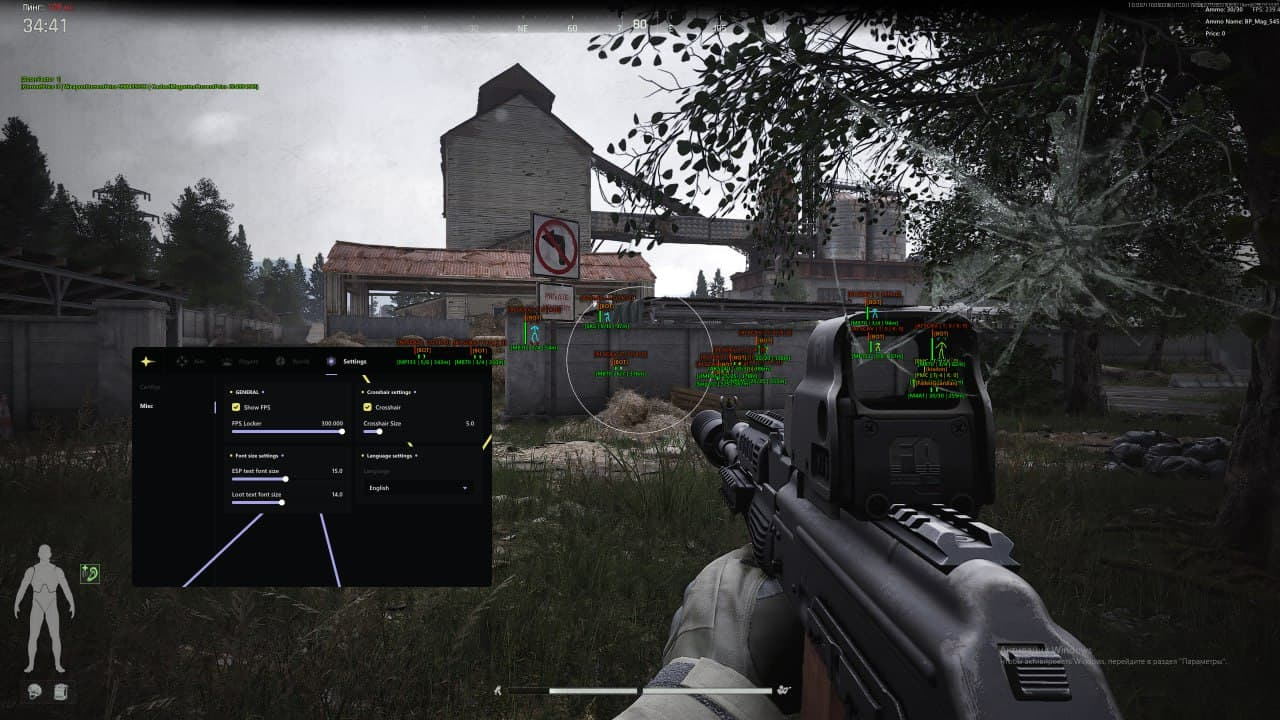
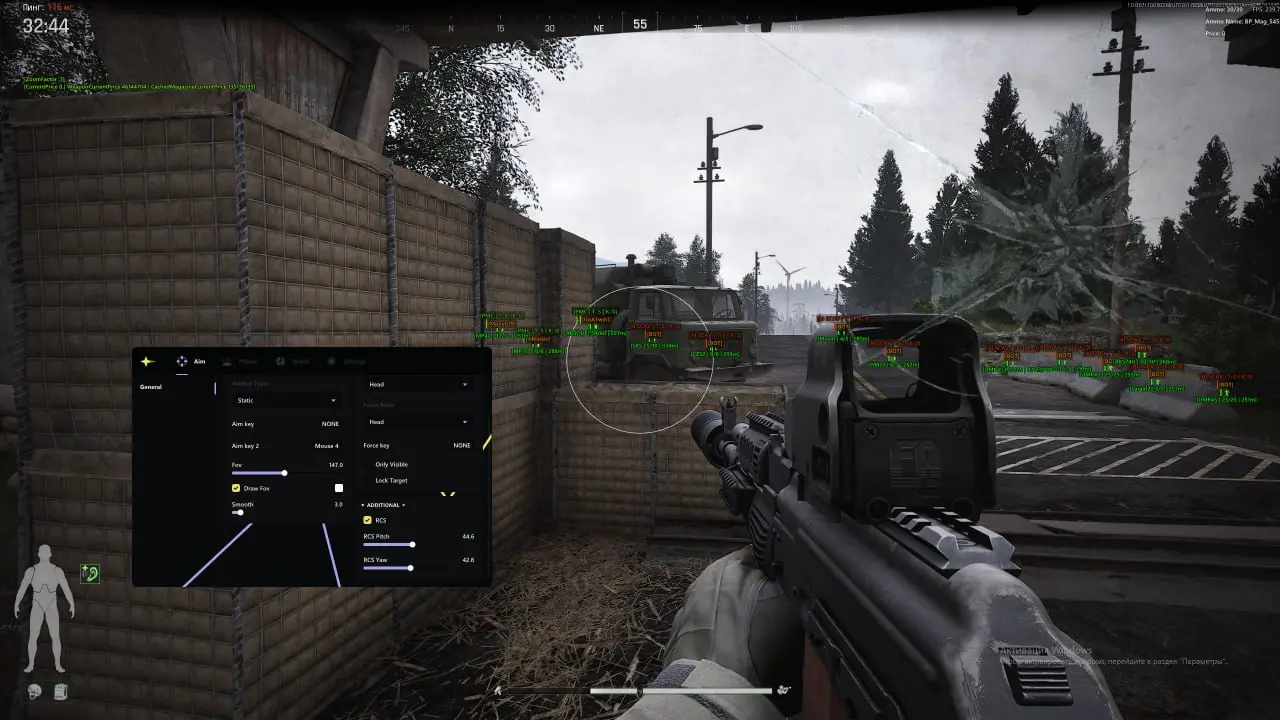
Obsidian Arena Breakout Infinite Cheat with Aimbot, ESP and Radar
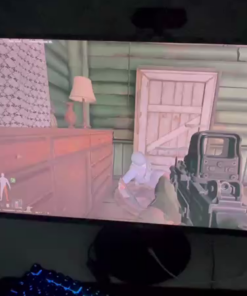
Obsidian Arena Breakout Infinite Cheat is a private gameplay software package featuring a customizable Aimbot, detailed Player and Bot ESP, a built-in Radar, recoil control, target locking, configuration management and Stream Bypass support.
Designed for players who want greater control and improved situational awareness, Obsidian combines its primary combat, visual and utility features inside one organized interface. Users can adjust targeting behavior, aiming smoothness, FOV, target bones, ESP information, radar settings and configuration profiles according to their preferred gameplay style.
The software supports compatible Intel and AMD desktop processors, works on supported versions of Windows 10 and Windows 11, and is designed for Arena Breakout Infinite running in Borderless mode.
Why Choose Obsidian for Arena Breakout Infinite?
Arena Breakout Infinite combines tactical combat, valuable equipment, AI-controlled enemies, extraction-based gameplay and environments where identifying threats quickly can determine the outcome of an encounter.
Obsidian is built around these conditions. Its Aimbot provides configurable targeting assistance, while Player and Bot ESP display additional information about detected entities. The Radar provides a separate positional overview, and the integrated configuration manager makes it possible to create several setups without rebuilding every setting before each session.
Main Advantages
- Customizable ABI Aimbot with FOV, smoothing, visibility checks and bone selection.
- Primary and secondary Aim Keys for flexible activation.
- Player and Bot ESP with boxes, skeletons, health, weapons and distance.
- Target Lock for maintaining focus on a selected opponent.
- RCS for supported recoil control.
- Built-in Radar for additional positional awareness.
- Config Manager with save, load and sharing options.
- Stream Bypass for supported recording and screen-sharing configurations.
- Compatible with supported Intel and AMD desktop systems.
- Supports compatible editions of Windows 10 and Windows 11.
- English and Chinese interface language options.
- Clean menu structure without unnecessary complexity.
Obsidian Arena Breakout Infinite Cheat Features
Obsidian includes several main feature categories:
- Aimbot
- Target Selection
- Player ESP
- Bot ESP
- Radar
- Recoil Control
- Performance Settings
- Configuration Manager
- Language Settings
- Stream Bypass
Each section can be configured separately, allowing users to create either a minimal setup or a more detailed combat and awareness profile.
Advanced Arena Breakout Infinite Aimbot
The Obsidian Aimbot provides control over target selection, aiming behavior and activation methods.
Users can adjust the target-selection area, choose a preferred body point, apply smoothing and decide whether the Aimbot should work only with visible enemies.
Core Aimbot Features
- Enable or disable Aimbot.
- Select the preferred Aimbot type.
- Assign a primary Aim Key.
- Assign a secondary Aim Key.
- Display the active Aimbot FOV.
- Adjust the FOV value.
- Enable smooth aiming.
- Select the preferred target bone.
- Aim only at visible enemies.
- Enable Target Lock.
- Enable RCS.
- Assign a Force Aim Key.
These options can be combined to create different aiming profiles for close-range combat, medium-distance fights and more controlled targeting behavior.
Selectable Aimbot Type
Obsidian allows users to select the available Aimbot type according to their preferred targeting behavior.
Different aiming modes may provide different movement and target-acquisition characteristics. The selected type can be combined with smoothing, FOV, bone selection and visibility settings.
This gives users more flexibility than a basic Aimbot with only an on and off switch.
Primary and Secondary Aim Keys
Obsidian supports two separate Aimbot activation keys.
Primary Aim Key
The primary key can be used for the standard aiming configuration.
Secondary Aim Key
The secondary key provides an additional activation option and can be useful when a different control is preferred for specific combat situations.
Possible uses include:
- One key for regular targeting.
- A second key for alternative target behavior.
- Separate mouse and keyboard controls.
- Different activation methods for close and longer distances.
Custom keybinds make it easier to integrate Obsidian into an existing Arena Breakout Infinite control layout.
Adjustable Aimbot FOV
The Aimbot FOV determines the size of the active target-selection area around the center of the screen.
A smaller FOV creates a more focused targeting area. A larger FOV allows the Aimbot to consider enemies positioned across a wider part of the display.
FOV Features
- Enable or disable the visible FOV circle.
- Adjust the FOV size.
- Use a smaller area for focused targeting.
- Use a wider area for broader target selection.
- Combine FOV with smoothing and visibility checks.
- Save the preferred value inside a configuration.
The Draw FOV option can be enabled while preparing the Aimbot settings and disabled later when a cleaner screen is preferred.
Smooth Aiming
The smoothing setting controls how quickly the aim moves toward the selected target.
Higher smoothing values provide slower and more gradual movement, while lower values create faster target acquisition.
Smooth aiming can be adjusted according to:
- Personal mouse sensitivity
- Weapon type
- Engagement distance
- Preferred targeting behavior
- Screen resolution
- Current gameplay situation
Combining smoothing with an appropriate FOV helps create a more controlled aiming profile.
Aim Bone Selection
Obsidian allows users to select the supported body point that should be prioritized by the Aimbot.
Available target options may include supported areas such as:
- Head
- Neck
- Chest
- Stomach
- Other available body points
The exact selection may depend on the current product version.
Bone selection can be used together with FOV, visibility checks, Target Lock and the Force Aim Key.
Visible-Only Targeting
The visible-only option allows the Aimbot to prioritize detected enemies who are not blocked by supported terrain, walls or other objects.
This can help reduce unwanted target selection and provide more controlled behavior during fights involving several detected players.
Visible-Only Benefits
- Prioritize enemies currently visible on the screen.
- Reduce targeting through supported obstacles.
- Combine with Player ESP visibility information.
- Use together with Target Lock.
- Create a cleaner target-selection profile.
Target Lock
Target Lock helps the Aimbot remain focused on a selected enemy while the configured activation conditions remain active.
This can reduce unwanted switching when several opponents are positioned close together.
Target Lock can be combined with:
- Primary or secondary Aim Key
- Custom FOV
- Smooth aiming
- Bone selection
- Visible-only targeting
- Force Aim Key
RCS Recoil Control System
Obsidian includes an RCS, or Recoil Control System, for supported weapon behavior.
RCS is designed to assist with recoil compensation and provide additional control during repeated or automatic fire.
RCS Features
- Enable or disable recoil control.
- Use together with the Aimbot.
- Apply supported recoil compensation.
- Save RCS preferences inside configurations.
- Adjust the overall combat setup according to weapon behavior.
The exact effect may depend on the weapon, game version and current Obsidian build.
Force Aim Key
The Force Aim Key provides a separate control for supported forced-targeting behavior.
This can be useful when the regular Aimbot profile uses one type of target selection, but temporary manual activation is preferred during a specific encounter.
The Force Aim Key works alongside the main and secondary Aim Keys and provides another layer of control without requiring the user to reopen the menu.
Player ESP
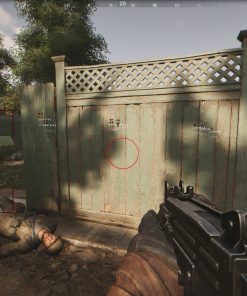
The Player ESP system provides additional information about detected players.
Each visual element can be enabled separately, allowing users to create either a clean minimal setup or a more detailed information layout.
Player ESP Features
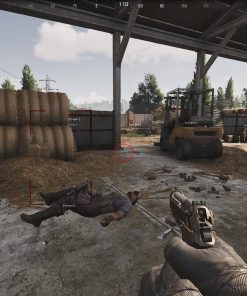
- Player Box ESP
- Skeleton ESP
- Health Bar
- Current Weapon
- Distance Display
- Custom visual settings
- Adjustable display behavior
Box ESP
Box ESP places a visual frame around detected player models.
This provides a clear reference for player position and can make targets easier to identify against complex terrain, structures and environmental details.
Box ESP can be used alone or combined with:
- Skeleton ESP
- Health information
- Weapon information
- Distance display
Skeleton ESP
Skeleton ESP displays the approximate body structure and position of detected players.
It can provide additional information about player posture and movement.
Users can enable Skeleton ESP independently or combine it with Box ESP and other visual information.
Player Health Display
Health ESP displays the supported health information of detected players.
This can provide additional context before or during an engagement and make it easier to understand the current condition of an opponent.
Health information can be displayed alongside the player box, skeleton, weapon and distance.
Weapon Information
Obsidian can display the weapon currently held by a detected player.
Weapon information may help users understand the likely engagement range and potential threat presented by a nearby opponent.
For example, an enemy carrying a close-range weapon may require a different response than a player equipped for longer-distance combat.
Player Distance Display
Distance ESP shows how far away a detected player is.
Arena Breakout Infinite includes combat at several ranges, making distance information useful for evaluating nearby threats and preparing for an engagement.
Distance information can help users:
- Identify close opponents.
- Separate nearby and distant threats.
- Monitor approaching players.
- Adjust positioning.
- Choose an appropriate weapon or strategy.
Bot ESP
Obsidian supports ESP information for compatible AI-controlled entities.
Bot ESP can help distinguish AI enemies from other detected targets and provide additional information during encounters involving both players and bots.
Bot ESP Features
- Bot Box ESP
- Bot Skeleton ESP
- Bot Health Display
- Bot Weapon Information
- Bot Distance Display
- Separate awareness of AI-controlled enemies
The available Bot ESP elements follow the same general visual system used for Player ESP.
Player and Bot Awareness
The combination of Player ESP and Bot ESP is particularly useful in Arena Breakout Infinite because users may encounter different types of enemies within the same location.
Separate information for players and AI entities can make it easier to understand what is happening around buildings, extraction routes, loot areas and combat zones.
Users can configure the displayed information according to personal preference and reduce unnecessary screen clutter by enabling only the most useful elements.
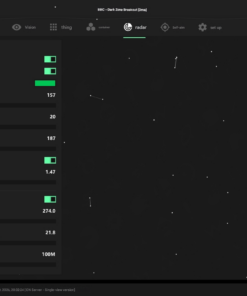
Built-In Radar
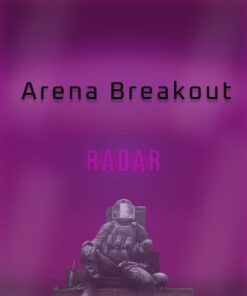
Obsidian includes a functional Radar that provides an additional positional overview of detected entities.
Radar information complements the regular Player and Bot ESP by organizing positions inside a separate interface element.
Radar Features
- Enable or disable Radar.
- Monitor supported player positions.
- Monitor supported bot positions.
- Use Radar together with ESP.
- Save Radar preferences inside configurations.
- Improve awareness when several targets are nearby.
Radar can be especially useful in areas where opponents may approach from several directions.
Radar and ESP Combination
Radar and ESP serve different purposes.
ESP provides information directly around detected entities, while Radar offers a broader positional overview.
Using the two systems together can provide:
- Direct player information through ESP.
- Wider positional context through Radar.
- Better awareness of movement around the user.
- Additional information during rotations.
- Easier monitoring of multiple detected targets.
Users who prefer a cleaner game display can reduce the number of ESP elements while keeping the Radar active.
FPS Locker
Obsidian includes an FPS Locker for users who want to set a preferred frame-rate limit.
FPS Locker Benefits
- Configure a preferred FPS limit.
- Reduce unnecessary frame-rate variation.
- Save the selected limit inside a configuration.
- Adjust performance behavior according to the computer.
The preferred setting depends on the system, monitor refresh rate and current game configuration.
Full Configuration Manager
The integrated configuration manager allows users to save, load and share preferred settings.
This removes the need to rebuild every Aimbot, ESP and Radar option before each session.
Config Features
- Create a configuration.
- Save current settings.
- Load an existing configuration.
- Share supported configuration files.
- Prepare multiple profiles.
- Switch between different setups.
Possible configurations may include:
- Close-range combat profile
- Medium-distance aiming profile
- Minimal ESP profile
- Detailed visual profile
- Player-focused setup
- Bot-focused setup
- Radar-focused profile
- Performance configuration
Save and Load Configurations
The Save function stores the selected Aimbot, ESP, Radar and performance settings.
The Load function restores an existing profile.
This allows users to experiment with different values while maintaining access to a stable preferred configuration.
Share Configurations
Supported configurations can be shared with other users or transferred between compatible installations.
This can make the initial setup process easier and provide a starting point for users who prefer not to configure every feature manually.
Each shared configuration can still be adjusted according to personal preference, hardware and control layout.
Stream Bypass
Obsidian includes Stream Bypass support for compatible recording, streaming and screen-sharing configurations.
This feature is designed to provide additional control over whether supported visual elements appear in selected capture applications.
Stream Bypass Uses
- Supported recording software
- Compatible streaming applications
- Supported screen-sharing methods
- Additional control over overlay capture
Capture behavior may depend on:
- Recording application
- Selected capture source
- Window or display capture method
- Windows configuration
- Current Obsidian version
Users should test the selected capture method before starting a recording or broadcast.
Interface Language Support
The current Obsidian interface includes support for:
- English
- Chinese
Language options can be selected through the menu.
Additional languages may become available in future software updates.
Clean and Organized Interface
Obsidian organizes the primary options into clear sections.
The menu includes dedicated categories for:
- Aimbot
- Target Settings
- Player ESP
- Bot ESP
- Radar
- Recoil Control
- Performance
- Configurations
- Language
- Stream Bypass
This structure makes the main settings easier to locate and reduces the time needed to create a preferred configuration.
System Requirements
Before purchasing Obsidian Arena Breakout Infinite Cheat, make sure the computer meets the listed requirements.
Processor Support
- Compatible Intel desktop processor
- Compatible AMD desktop processor
Disk Requirements
- The system drive must use GPT partitioning.
- MBR-only installations are not supported.
BIOS Requirements
- The computer must use UEFI BIOS mode.
- CPU virtualization must be available and enabled.
- Secure Boot must be disabled.
Operating System
- Windows 10 version 1903 or newer supported builds
- Supported Windows 11 versions
- 64-bit operating system
Game Display Mode
- Borderless mode only
Device Type
- Desktop computers are supported.
- Laptops are not supported.
Additional Requirements
- Stable internet connection.
- Administrator access may be required.
- Current supported drivers.
- Working Arena Breakout Infinite installation.
- Required BIOS settings configured correctly.
- Conflicting overlays or background programs may need to be closed.
- The setup guide must be followed in the correct order.
GPT Disk Requirement
Obsidian requires the supported system disk to use the GPT partition format.
GPT is commonly used with modern UEFI-based Windows installations.
Users should verify the current disk layout before purchasing. A system installed in legacy BIOS mode with an MBR disk should not be assumed to be compatible.
Disk conversion or Windows reinstallation may be required in some configurations, so compatibility should be checked before activating a license.
UEFI Requirement
The motherboard must be configured to use UEFI mode.
Legacy BIOS or Compatibility Support Module configurations may not meet the current software requirements.
UEFI mode works together with the GPT disk requirement and the necessary virtualization configuration.
Virtualization Requirement
CPU virtualization must be enabled in BIOS.
Depending on the processor, the option may appear under a name such as:
- Intel Virtualization Technology
- Intel VT-x
- AMD SVM
- SVM Mode
- CPU Virtualization
The exact name and location depend on the motherboard manufacturer and BIOS interface.
Secure Boot Must Be Disabled
Secure Boot must be disabled for the supported Obsidian configuration.
Users should verify the current Secure Boot status before launching the software.
Changing BIOS settings incorrectly can affect Windows startup, so the provided setup instructions should be followed carefully.
Borderless Mode Requirement
Obsidian currently supports Arena Breakout Infinite running in Borderless mode only.
Windowed and exclusive Fullscreen modes should not be assumed to work unless the current compatibility information is updated.
Before launching:
- Open the game settings.
- Locate the display-mode option.
- Select Borderless.
- Apply the settings.
- Restart the game when required.
Desktop Computers Only
Laptop systems are not currently supported.
This applies even when the laptop uses an Intel or AMD processor that otherwise appears compatible.
Users should purchase the product only for a supported desktop configuration meeting the GPT, UEFI, virtualization, Secure Boot and operating-system requirements.
Anti-Cheat Compatibility
- Anti-Cheat: ACE
- Compatibility support: Included according to the current product information
Anti-cheat compatibility can change after game or protection updates. Always check the current product status before purchasing, activating or launching the software.
HWID Spoofer Information
Obsidian Arena Breakout Infinite does not include a built-in HWID Spoofer.
Spoofer Status
- Built-in HWID Spoofer: No
- Separate Spoofer: Not included
- Hardware-ban protection: Not part of this package
Users who require separate hardware identification protection should not assume that spoofing functionality is included.
Product Compatibility
- Game: Arena Breakout Infinite
- Software: Obsidian Arena Breakout Infinite Cheat
- Anti-Cheat: ACE
- CPU: Supported Intel and AMD desktop processors
- Device: Desktop PC only
- Laptop Support: Not supported
- Disk Type: GPT only
- BIOS Mode: UEFI
- Virtualization: Must be enabled
- Secure Boot: Must be disabled
- Operating System: Windows 10 version 1903 or newer and supported Windows 11 versions
- Game Mode: Borderless only
- Aimbot: Included
- Player ESP: Included
- Bot ESP: Included
- Radar: Included
- RCS: Included
- Stream Bypass: Included
- HWID Spoofer: Not included
- Config Manager: Included
Important Setup Information
For the best installation experience:
- Confirm that you are using a desktop computer.
- Verify that the system disk uses GPT.
- Make sure Windows is running in UEFI mode.
- Enable CPU virtualization in BIOS.
- Disable Secure Boot.
- Confirm that Windows 10 or Windows 11 is supported.
- Set Arena Breakout Infinite to Borderless mode.
- Download the latest available Obsidian files.
- Close conflicting applications when required.
- Follow the provided launch order.
- Enter the license information when requested.
- Configure Aimbot, ESP and Radar settings.
- Save your preferred configuration.
- Check the current product status before every launch.
Do not skip setup steps or use outdated files, as this may cause launch and compatibility problems.
What You Receive After Purchase
After completing the order, you receive the available Obsidian product access and setup information.
- Obsidian Arena Breakout Infinite license.
- Download access.
- Installation instructions.
- Advanced Aimbot.
- Primary and secondary Aim Keys.
- Player ESP.
- Bot ESP.
- Radar.
- RCS.
- FPS Locker.
- Configuration Manager.
- Stream Bypass.
- Product support.
A built-in HWID Spoofer is not included.
Frequently Asked Questions
Does Obsidian include an Aimbot?
Yes. Obsidian includes a configurable Aimbot with selectable type, primary and secondary keys, FOV, smoothing, bone selection, visibility checks and Target Lock.
Does it support Player and Bot ESP?
Yes. Obsidian includes ESP information for supported players and AI-controlled bots.
What information can ESP display?
ESP can display boxes, skeletons, health, weapon and distance information.
Does Obsidian include Radar?
Yes. A built-in Radar is included for additional positional awareness.
Is recoil control included?
Yes. Obsidian includes RCS for supported recoil compensation.
Can I save my settings?
Yes. The Config Manager supports saving, loading and sharing configurations.
Does it support streaming and recording?
Obsidian includes Stream Bypass for supported capture configurations. Results may depend on the recording application and selected capture method.
Does Obsidian support AMD processors?
Yes. Compatible Intel and AMD desktop processors are supported.
Does it work on laptops?
No. Laptop systems are not supported.
Does the disk need to use GPT?
Yes. The supported system disk must use GPT partitioning.
Does virtualization need to be enabled?
Yes. CPU virtualization must be enabled in UEFI BIOS.
Should Secure Boot be enabled?
No. Secure Boot must be disabled for the supported configuration.
Which game display mode is supported?
Arena Breakout Infinite must be running in Borderless mode.
Does Obsidian include a HWID Spoofer?
No. A built-in HWID Spoofer is not included.
Which Windows versions are supported?
Supported systems include Windows 10 version 1903 and newer compatible builds, as well as supported Windows 11 versions.
Is permanent undetected status guaranteed?
No third-party software can guarantee permanent undetected status. Arena Breakout Infinite, ACE and Windows updates can affect compatibility at any time. Always verify the current status before use.
Buy Obsidian Arena Breakout Infinite Cheat
Obsidian Arena Breakout Infinite Cheat is a complete option for desktop users looking for an ABI cheat with Aimbot, Player ESP, Bot ESP, Radar, Target Lock, RCS, Stream Bypass and configuration management.
Its customizable targeting settings, detailed visual information and separate Radar provide a flexible setup for different combat situations, while the Config Manager makes it easy to save and switch between preferred profiles.
Before purchasing, confirm that the computer uses a supported Intel or AMD desktop processor, a GPT disk, UEFI mode, enabled virtualization, disabled Secure Boot and a compatible version of Windows.
Choose your preferred license duration, complete the order and follow the included setup instructions to begin using Obsidian Arena Breakout Infinite Cheat from CrazyCapyStore.
| Duration | 6 hours, 1 month |
|---|


Reviews
There are no reviews yet.